Updating billing details
Your billing details appear on your invoices and are used to calculate any applicable VAT/Tax. You can update your billing details at any time by logging into your account. Note that any changes to billing details will only apply to future invoicing – existing invoices remain unchanged.
How to update your billing details
Step 1: Navigate to the Billing page
From the left menu, browse to Settings > Billing.
Step 2: Select Update
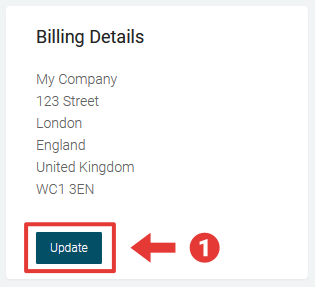
Step 3: Enter your Billing details
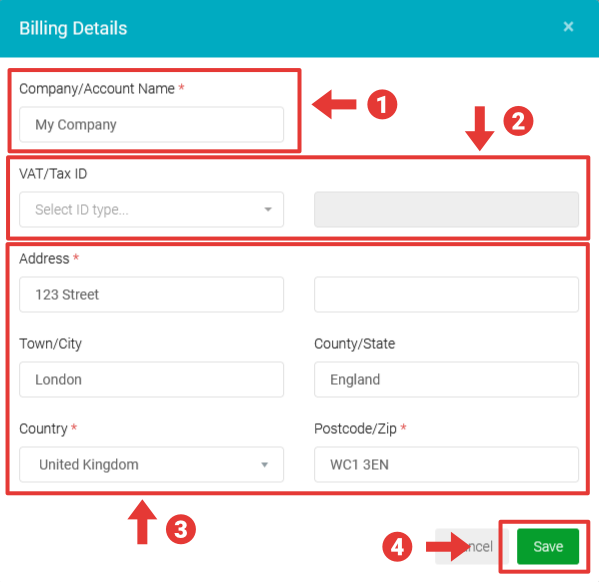
-
Enter your Company/Account Name. This is the name that will appear on invoices and should be your registered business or trading name, or any desired name if you do not have a registered business.
-
Enter the VAT/Tax ID for your business if you have one or leave blank if you are not registered for VAT/Tax.
-
Enter your full billing address in the fields provided.
-
Click the _Save _button
|| Note there are two separate fields for VAT/Tax. In the first, select the country in which your business is registered for VAT/Tax purposes, and in the second field enter the VAT/Tax ID without the country code identifier.
| This information will be used to calculate any applicable VAT/Tax charges.
Once done, the _Billing _page will update to show your updated details.