Cloning Event Displays
Cloning Event Displays
Buzzspark allows you to easily create a copy of an existing Event Display to help you save time when you need to create a similar Display or test changes in an existing, live Display.
Step 1: Navigate to the Event Displays
From the left menu, browse to Engage > Event Displays.
Step 2: Chose the Event Display you wish to copy
On the Events Displays Page:
- Locate the Event Display you wish to copy.
- Click the corresponding Copy button under the Actions column.
Step 3: Name the new Display
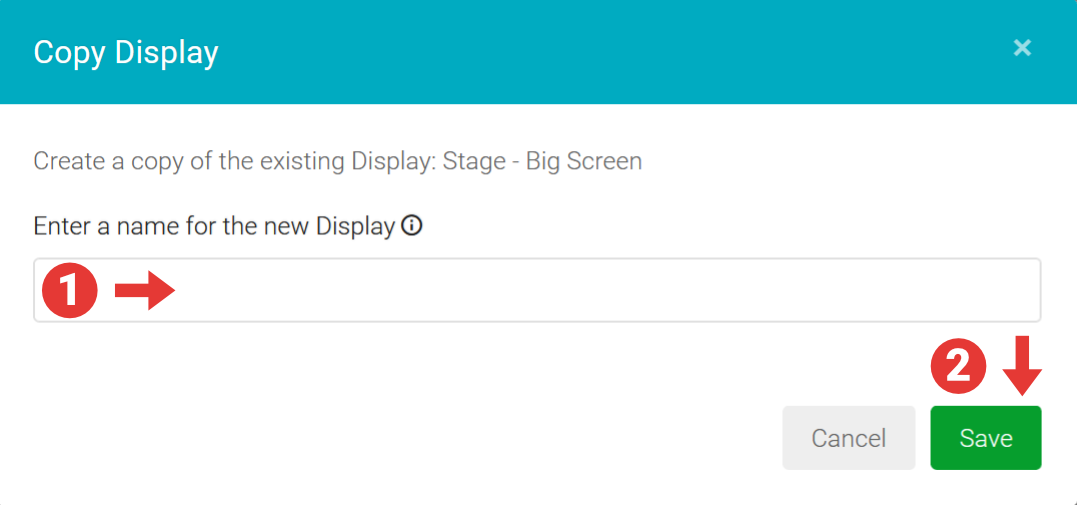
In the Copy Display modal:
- Enter a Name for your new Event Display – this cannot be the same name as an existing Display.
- Click the Save button to save the new Event Display.
The list of Displays will be updated, showing the newly created Event Display which, you can now customise as needed.