Previewing Widget Displays
There are two ways you can preview a Widget Display:
- Preview in the visual editor whilst editing – good for seeing your changes as you customise the Display and without saving the changes.
- Preview in a new browser window – does not include the user interface of the visual editor so you see a more realistic view of the Display, but it only shows saved changes.
How to preview a Widget Display whilst editing
Step 1: Navigate to the Widget Display page
From the left menu, browse to Engage > Widget Display.
Step 2: Select the Widget Display you wish to edit
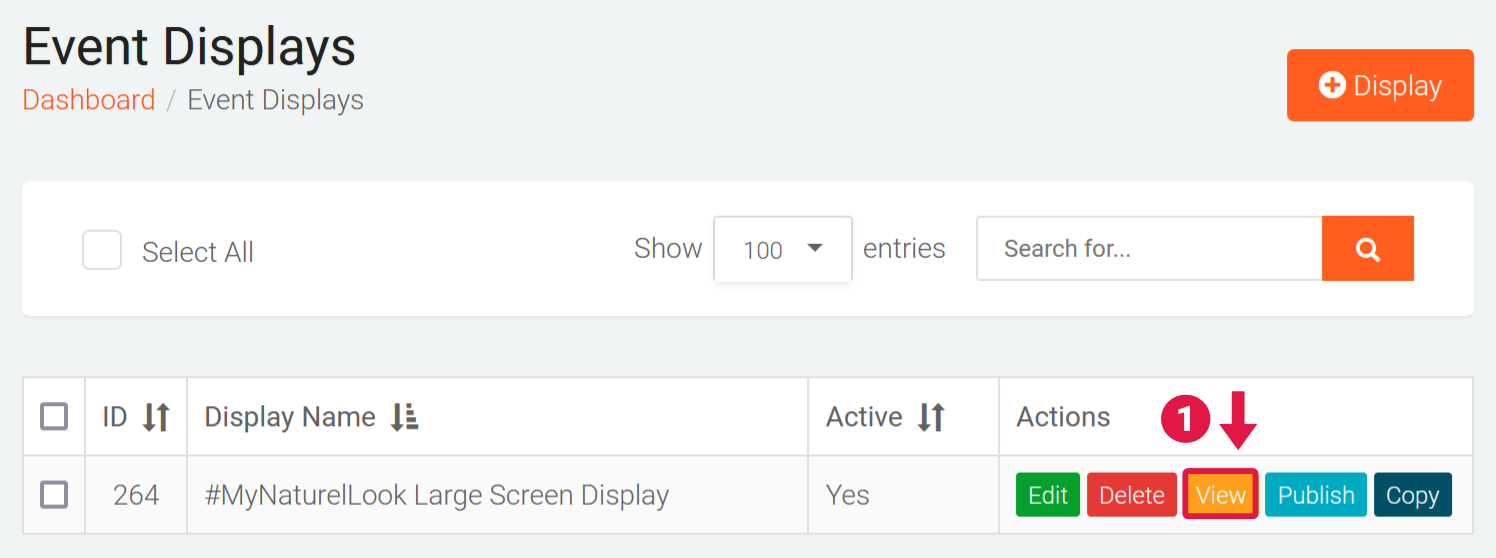
On the Widget Displays page
- Click on the Edit button under the Actions column for Widget Display you wish to edit.
Step 3: Edit and preview your changes
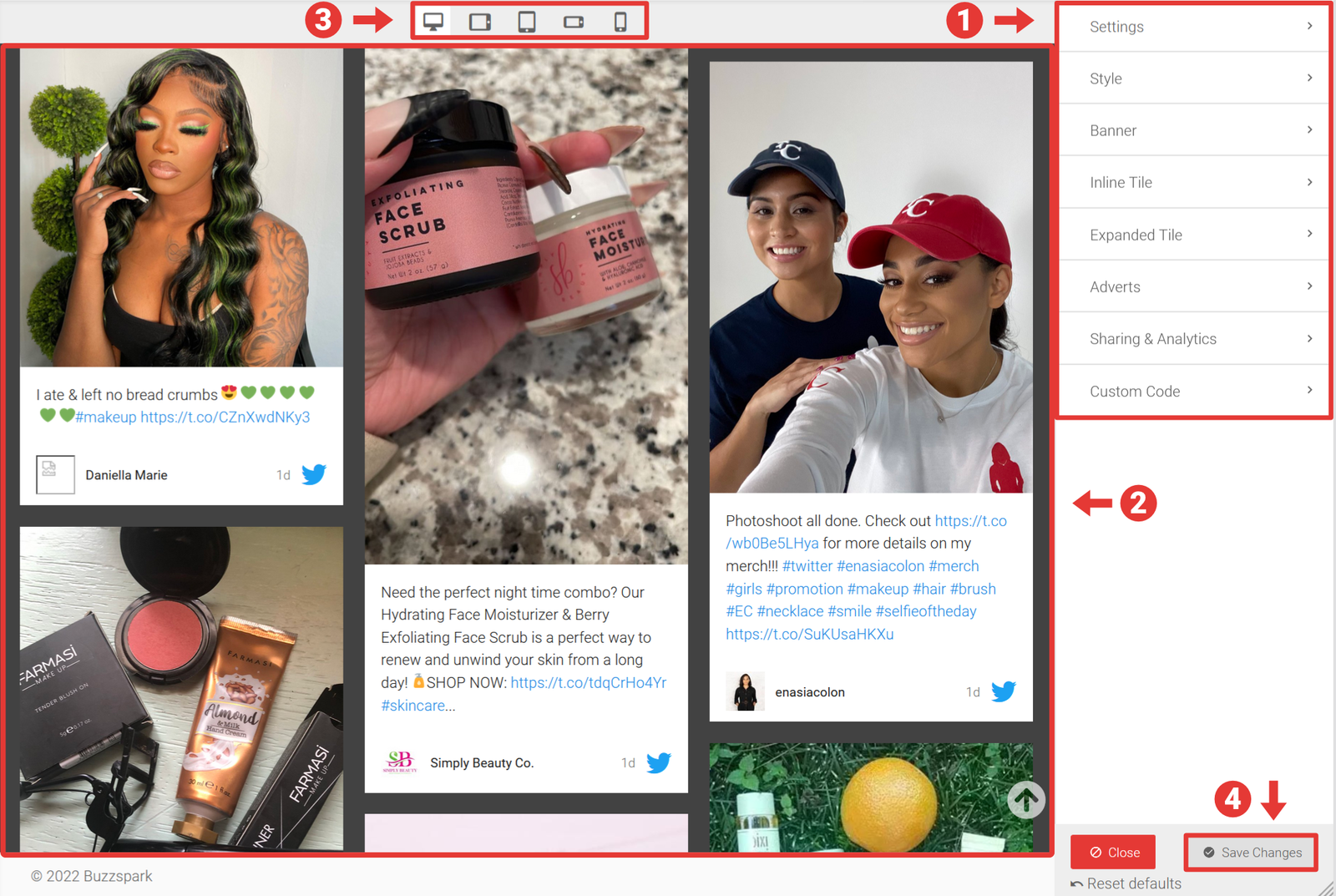
On the Edit Display page
- Click on any of the tabs to customise settings as required.
- The preview pane will automatically update to reflect your changes.
- You can also resize the width of the preview pane to mobile, tablet and desktop sizes by clicking on the corresponding icons in the toolbar at the top.
- Click on the bottom right Save Changes button to save your changes when done.
How to preview a Widget Display in a browser
Step 1: Navigate to the Widget Display page
From the left menu, browse to Engage > Widget Display.
Step 2: Select the Widget Display you wish to preview
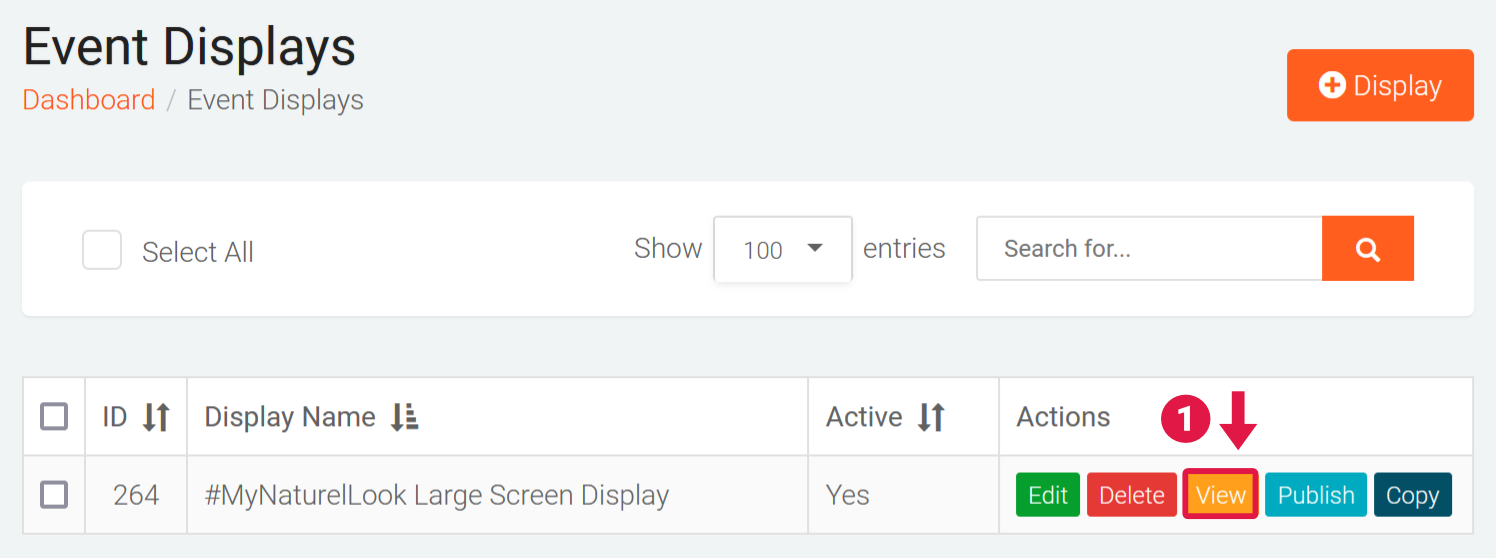
On the Widget Displays page
- Click on the View button under the Actions column for Widget Display you wish to preview. The preview will open in new browser tab/window.
You can also resize the browser window to common or specific sizes using the built-in Responsive Design Mode feature available in most browsers:
- Firefox - from the keyboard, press Ctrl + Shift + M (or Cmd + Opt + M on macOS). For full details, see https://developer.mozilla.org/en-US/docs/Tools/Responsive_Design_Mode
- Chrome - open the Developer Tools (Menu > Tools > Developer Tools, Cmd + Opt + I on macOS or F12 / Ctrl + Shift + I on Windows and Linux), then enable the browser emulator by clicking the Toggle device toolbar icon in the top left of the Developer Tools. See https://developer.chrome.com/docs/devtools/device-mode/
- Edge - from the keyboard, press Ctrl + Shift + M (or Cmd + Opt + M on macOS). For full details, see https://docs.microsoft.com/en-us/microsoft-edge/devtools-guide-chromium/device-mode/