Previewing Event Displays
There are two ways you can preview an Event Display:
- Preview in the visual editor whilst editing – good for seeing your changes as you customise the Display and without saving the changes.
- Preview in a new browser window – does not include the user interface of the visual editor so you see a more realistic view of the Display, but it only shows saved changes.
How to preview an Event Display whilst editing
Step 1: Navigate to the Event Display page
From the left menu, browse to Engage > Event Displays.
Step 2: Select the Event Display you wish to edit
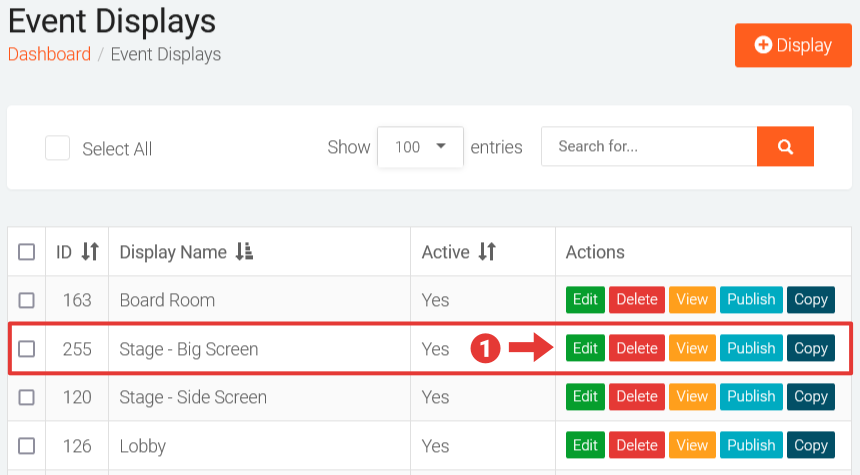
- On the Event Displays page, click on the Edit button under the Actions column for Event Display for which you wish to edit.
Step 3: Edit and preview your changes
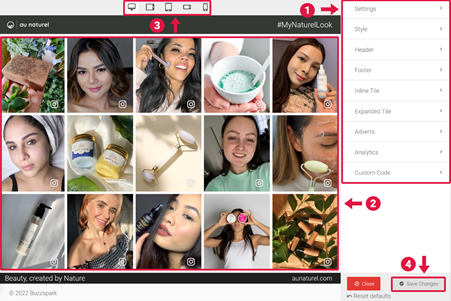
On the Edit Display page:
- Click on any of the tabs to customise settings as required.
- The preview pane will automatically update to reflect your changes.
- You can also resize the width of the preview pane to mobile, tablet and desktop sizes by clicking on the corresponding icons in the toolbar at the top.
- Click on the bottom right Save Changes button to save your changes when done.
How to preview an Event Display in a browser
Step 1: Navigate to the Event Display page
From the left menu, browse to Engage > Event Displays.
Step 2: Select the Event Display you wish to preview
On the Event Displays page, click on the View button under the Actions column for Event Display for which you wish to preview. The preview will open in new browser tab/window.
You can also resize the browser window to common or specific sizes using the built-in Responsive Design Mode feature available in most browsers:
- Firefox- from the keyboard, press Ctrl + Shift + M (or Cmd + Opt + M on macOS). For full details, see https://developer.mozilla.org/en-US/docs/Tools/Responsive_Design_Mode
- Chrome- open the Developer Tools (Menu > Tools > Developer Tools, Cmd + Opt + I on macOS or F12 / Ctrl + Shift + I on Windows and Linux), then enable the browser emulator by clicking the Toggle device toolbar icon in the top left of the Developer Tools. See https://developer.chrome.com/docs/devtools/device-mode/
- Edge- from the keyboard, press Ctrl + Shift + M (or Cmd + Opt + M on macOS). For full details, see https://docs.microsoft.com/en-us/microsoft-edge/devtools-guide-chromium/device-mode/