Managing Widget Displays
Widget Displays showcase your curated feeds of user generated content on websites and apps.
Managing Widget Displays in Buzzspark
Step 1: Navigate to the Widget Displays page
From the left menu, browse to Engage > Widget Displays.
Step 2: Manage the list of Widget Displays as required
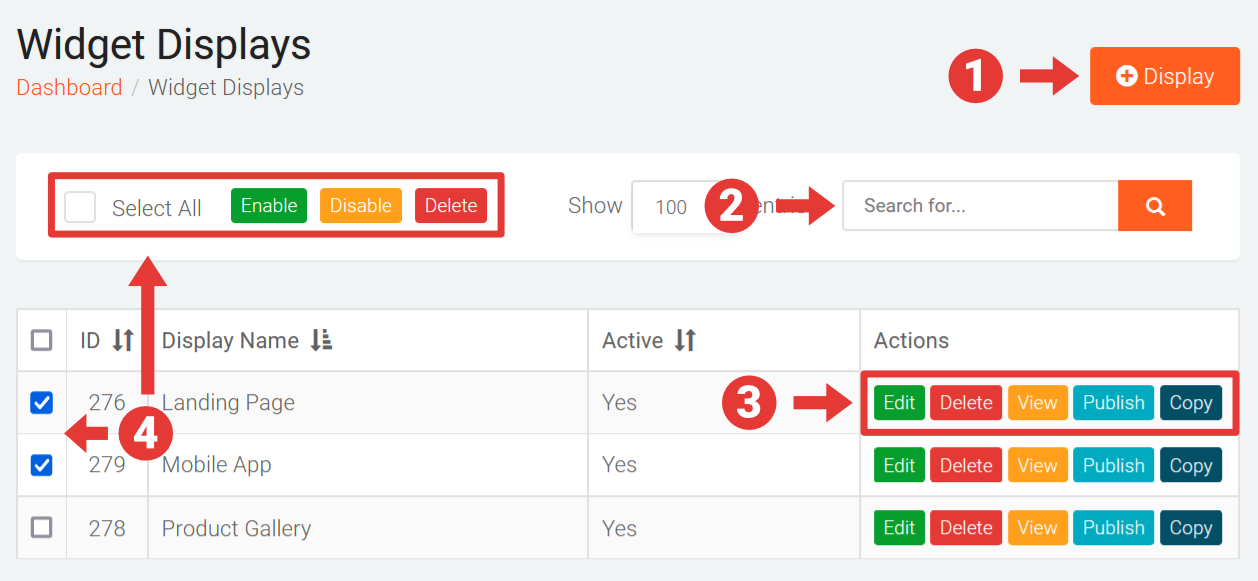
On the Widget Displays page, you can perform the following actions:
- +Display - add a new Display. See Creating, Editing and Customising Widget Displays.
- Use the search tool to quickly find a specific Widget Display.
- Use the Action buttons for a specific Widget Display to:
- Edit – edit the existing Widget Display. See Creating, Editing and Customising Widget Displays.
- Delete– permanently delete the Widget Display. A confirmation is required before a Display is deleted.
- _View _– preview the Widget Display in your browser. See Previewing Widget Displays.
- Publish – get the embed code for the Widget Display. See Publishing Widget Displays.
- Copy – duplicate or create a copy of the Widget Display. See Cloning Widget Displays
- You can perform Bulk Actions on multiple Widget Displays in one go by selecting the corresponding checkboxes (or clicking the select all checkbox in the Bulk Actions Toolbar at the top) and then clicking on one of the following buttons in the Bulk Actions Toolbar to:
- Enable – enable or turn-on the Displays.
- Disable – disable or turn-off the Displays, so they do not show any content.
- Delete – permanently delete the selected Displays.