How to get the UGC embed code for an Email Campaign
Two options are available for embedding the Email Campaign Display Images in emails.
- The Image URL provides the just URL for the image for use in
srcattribute of the<img>tag, and - The HTML option includes the full HTML code for the
<img>tag.
Step 1: Navigate to Email Campaign Displays.
From the left menu, click on Engage > Email Campaigns.
Step 2: Locate the Display you wish to embed.
From the list of Displays, click the corresponding Publish button under the Actions column of the Display you want to embed.
Step 3: Copy the embed copy
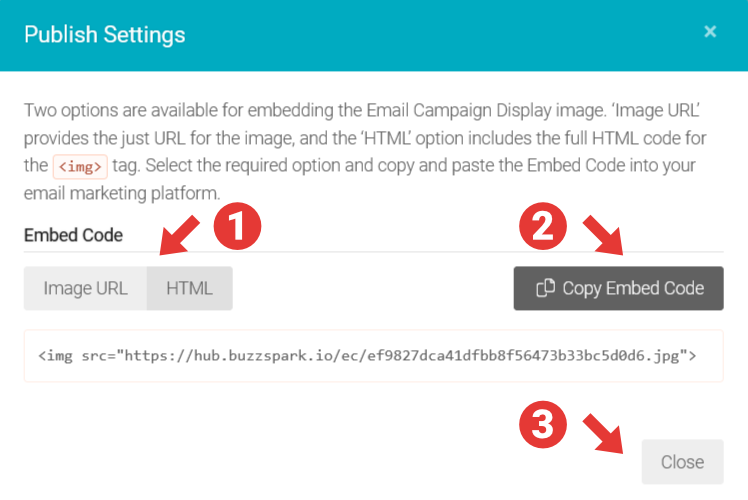
In the ‘Publish Settings’ modal:
- Select the required option.
- Click Copy Embed Code to copy the selected embed code and paste it into the appropriate place in your email marketing platform - see below for details.
- Click Close when done.
Integrating UGC in Specific Email Marketing Platforms
See the following articles for instructions on where to paste the embed code for specific email marketing platforms:
|| We recommend embedding Email Campaign Display Images as HTML code within code or text blocks in email marketing platforms. This avoids email platforms grabbing a copy of the image from the copied Image URL when inserting as an image.